MCK25 Connection Guide MEDELI MCK25 MIDI / DAW Connection Guide

product

Connection

USB MIDI

Connecting via USB-C Cable

This connection method features low latency and stable communication, making it ideal for scenarios such as music arranging, recording, playing virtual instruments, and DAW (Digital Audio Workstation) control. We recommend using this connection mode for DAW control.

1

Connect to a host device.

Use the included USB-C cable to connect the USB-C port of the keyboard to a computer, tablet or other compatible mobile device. When connecting to a mobile device, you may need a compatible USB adapter or USB hub.

2

Turn on MCK25.

3

Enter the settings menu.

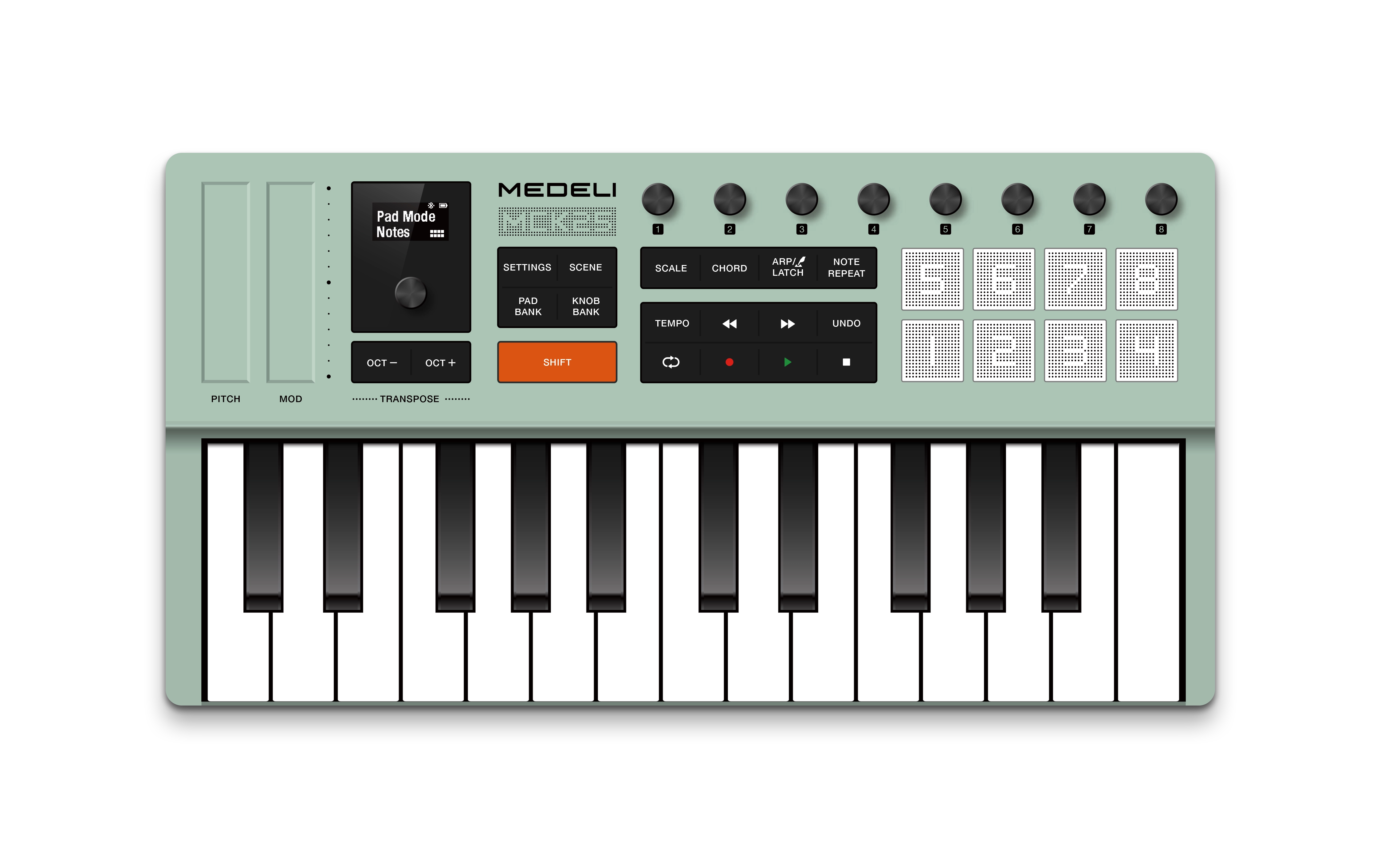
Press the [SETTINGS] button to enter the Global settings menu.

4

Switch to USB mode.

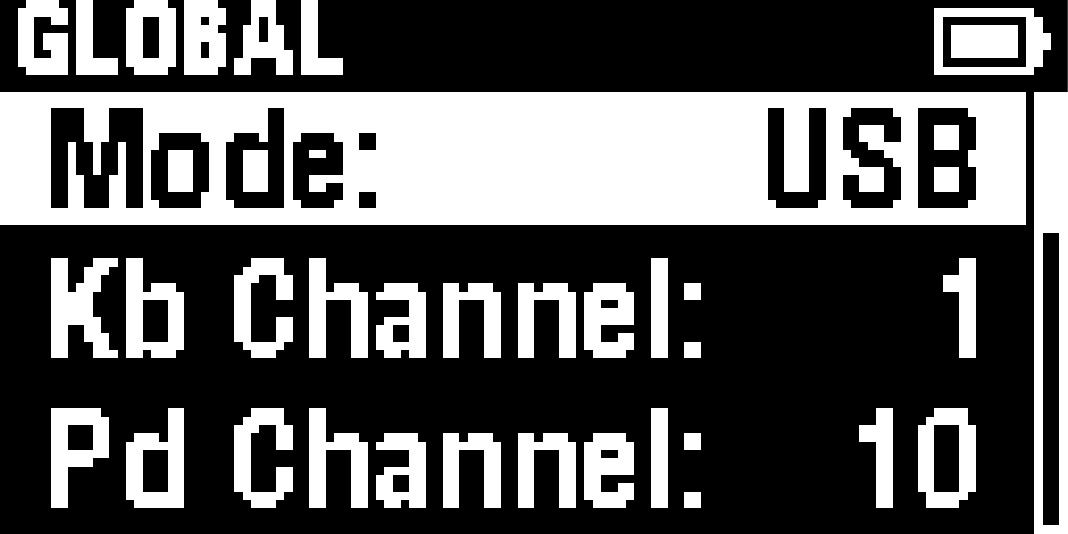
Turn the encoder to select Mode, press it to enter, then turn it to select USB. Press the encoder again to confirm and exit.

USB mode setting
5

Check the connection status.

Open the target DAW, virtual instrument, or other MIDI-compatible music app, and check that the keyboard is recognized and enabled in the MIDI / Controller / External Device Setup menu in the DAW or app.
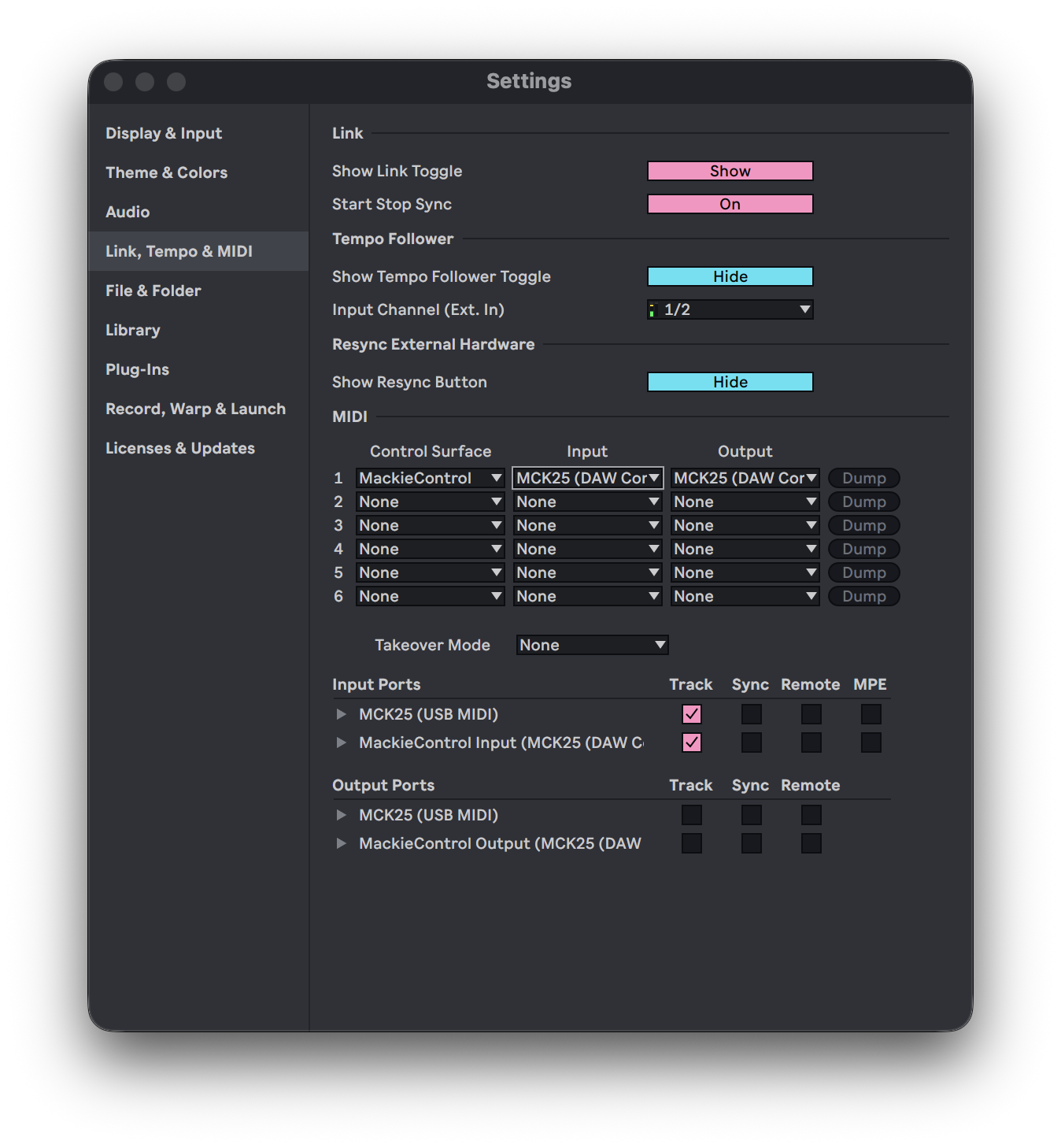
For keyboard, pad, and knob performance, please select the regular MIDI port of MCK25.
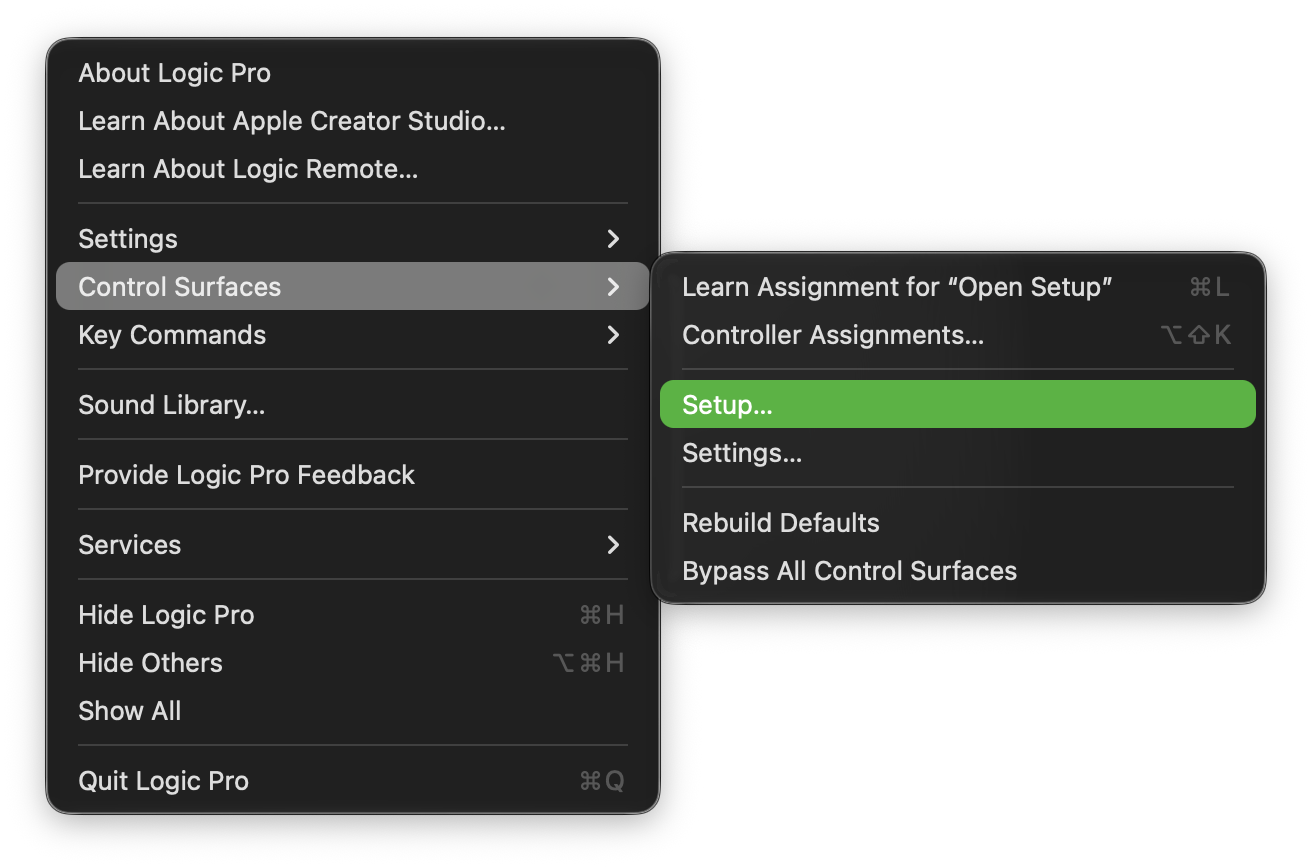
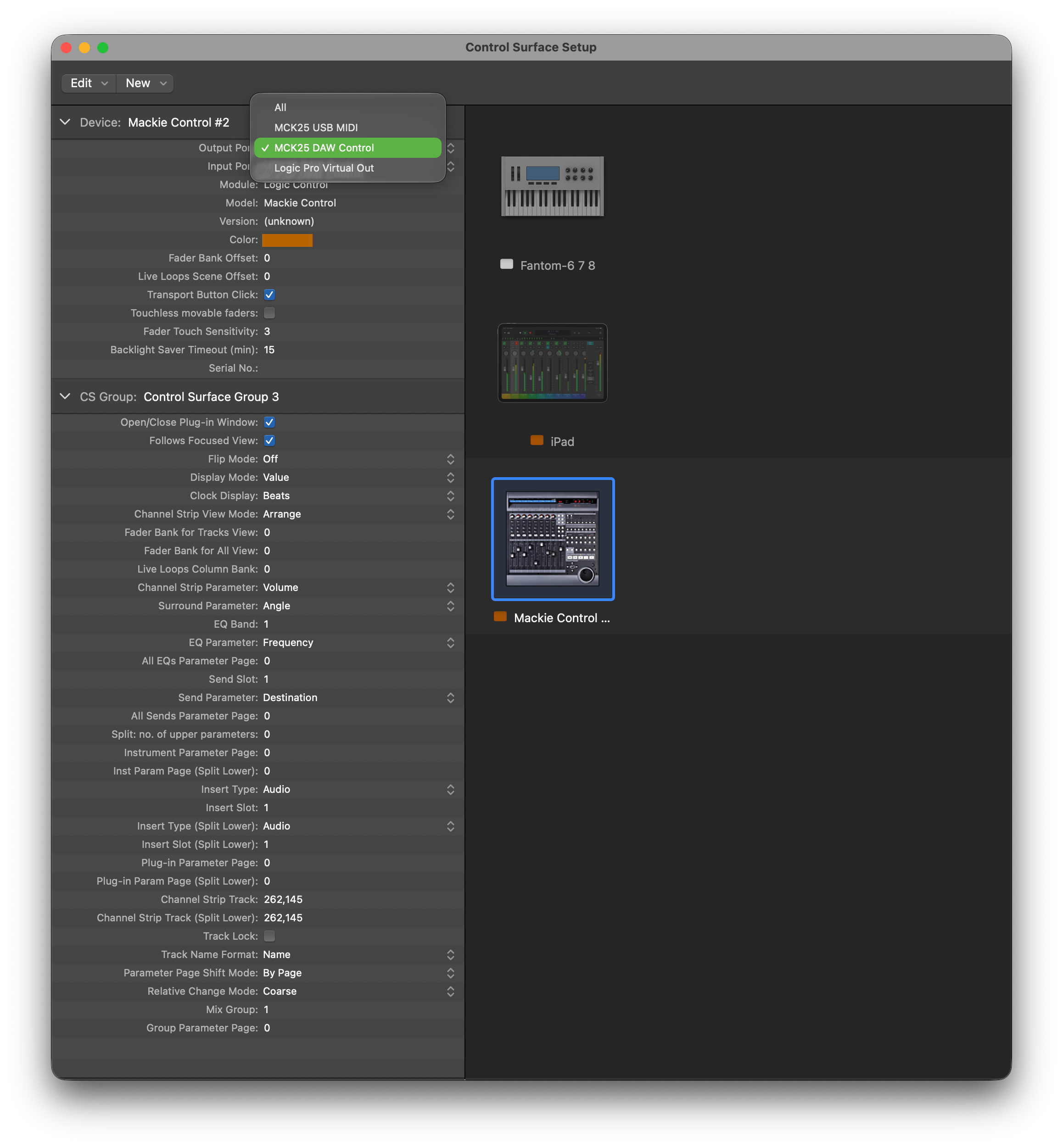
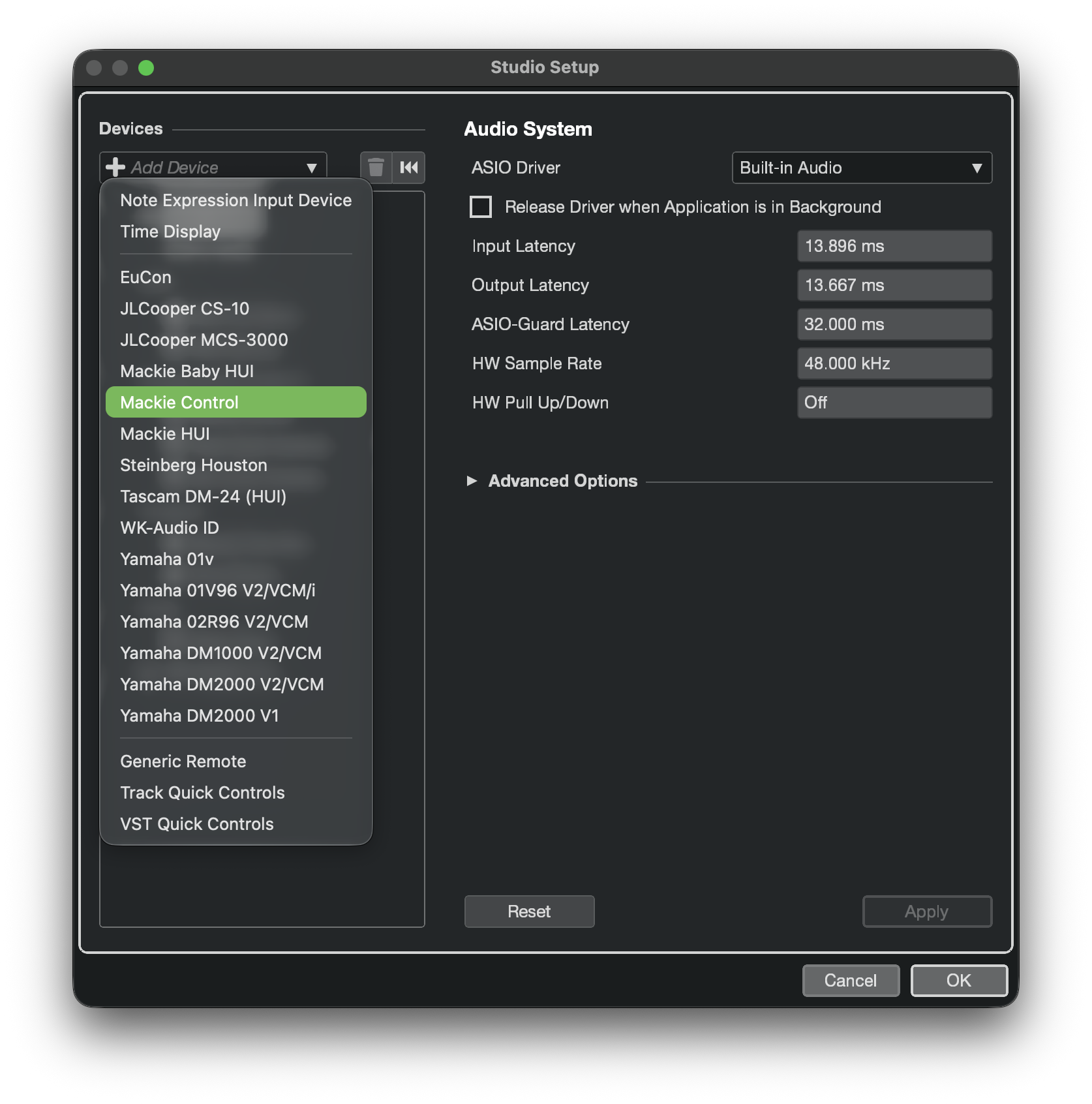
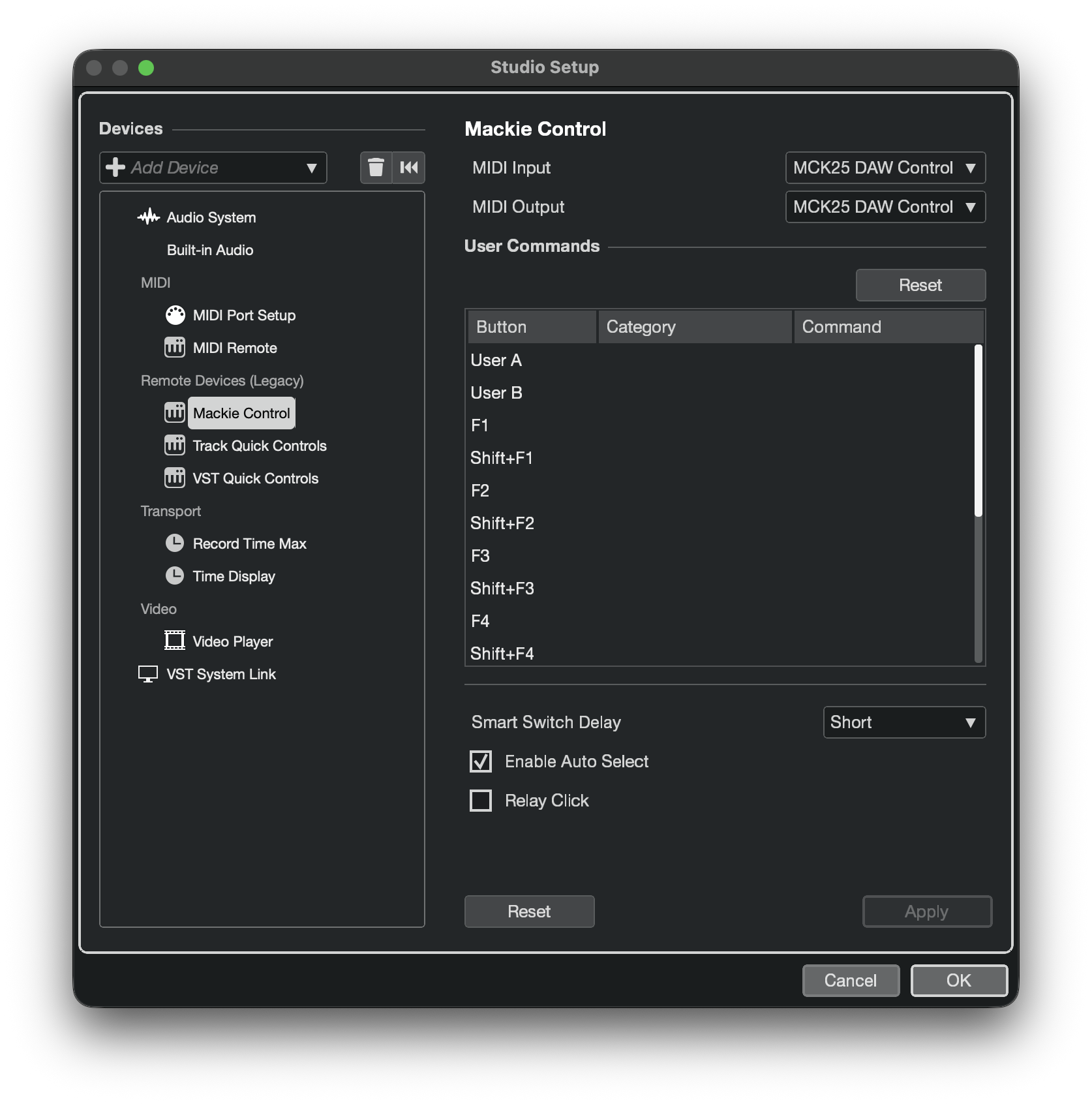
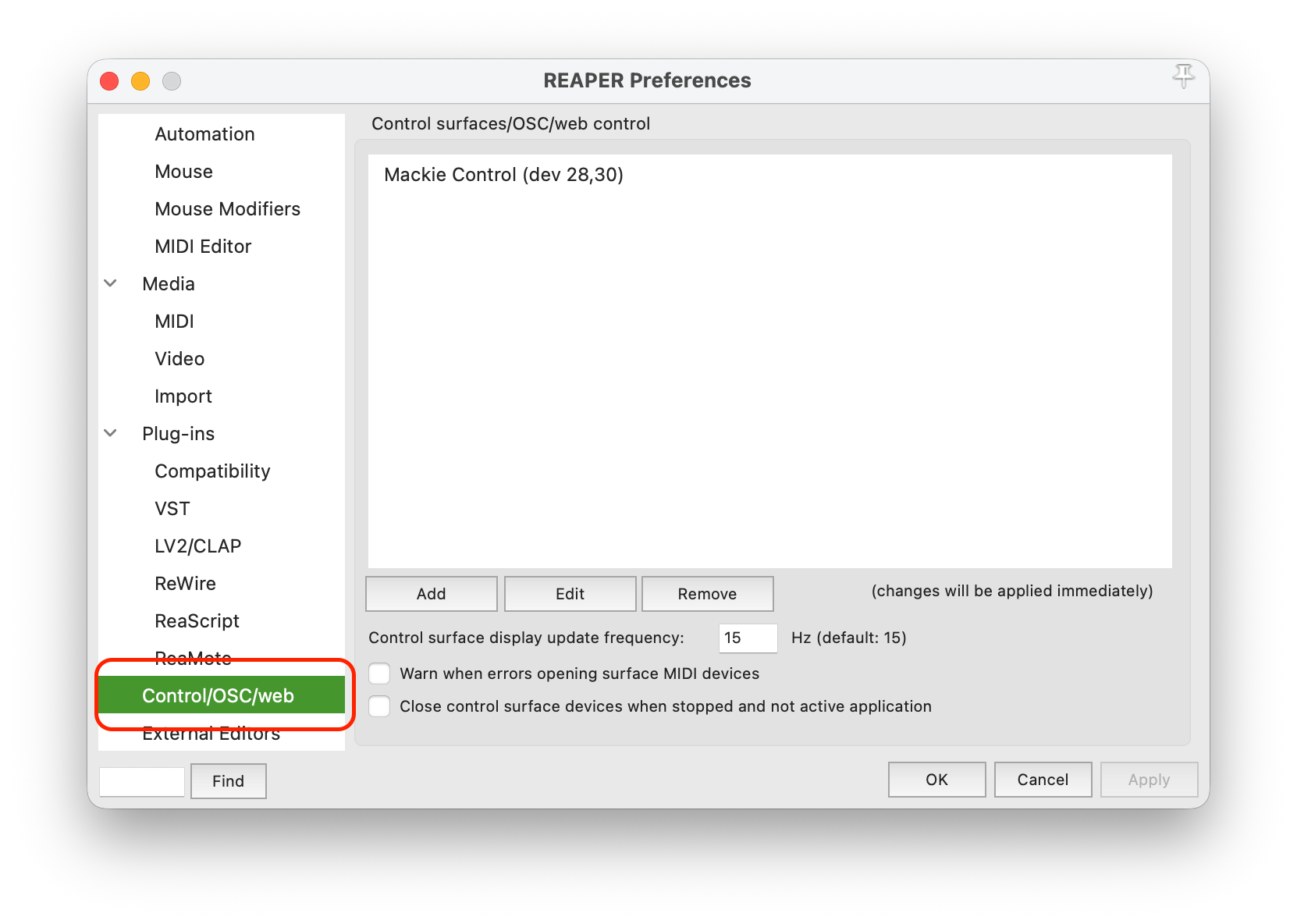
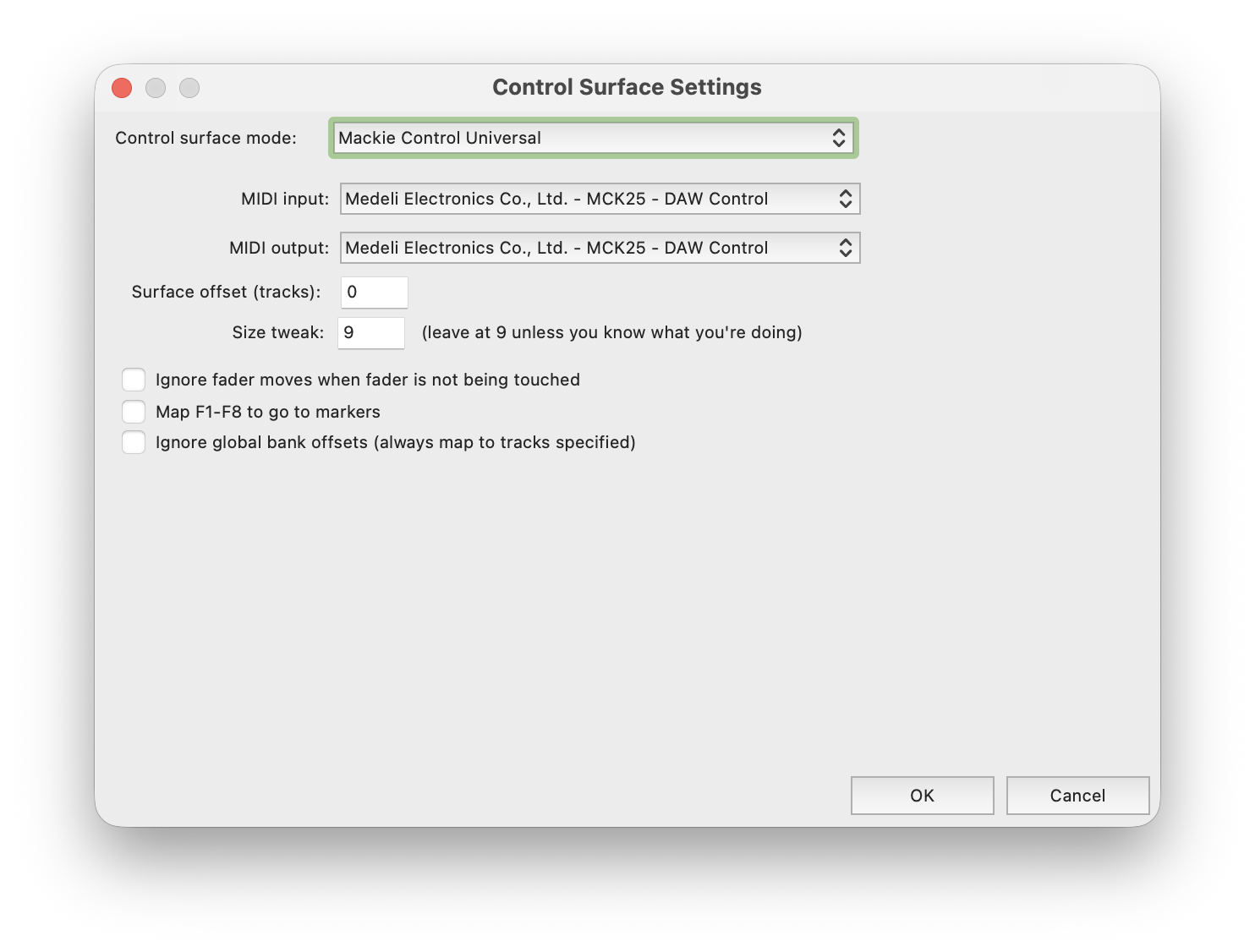
For DAW control, such as play, stop, record, switch tracks or mix, please add Mackie Control in the host software and select the DAW Control port of MCK25.
The actual port names may vary depending on the operating system. For details, refer to MIDI Port Description in Appendices.

Play MCK25's keys or pads to check that the software receives MIDI from the keyboard. If you have configured the control surface, you can further test the transport, track, and knob controls.
To disconnect, please stop playing or recording in the host software, then unplug the USB cable or turn off MCK25.

BLE MIDI

Connecting via BLE MIDI

MCK25 supports MIDI communication over Bluetooth Low Energy (BLE MIDI). BLE MIDI is ideal for wireless performance and regular MIDI control.

Before connecting, ensure that the host device, operating system, and music app support BLE MIDI, that MCK25 has sufficient battery power.

To ensure stable connection, please keep MCK25 and the host device as close as possible.
If MCK25 is not currently in BLE mode, configure it with the steps below:

1

Turn on MCK25.

2

Enter the settings menu.

Press the [SETTINGS] button to enter the Global settings menu.

3

Switch to BLE mode.

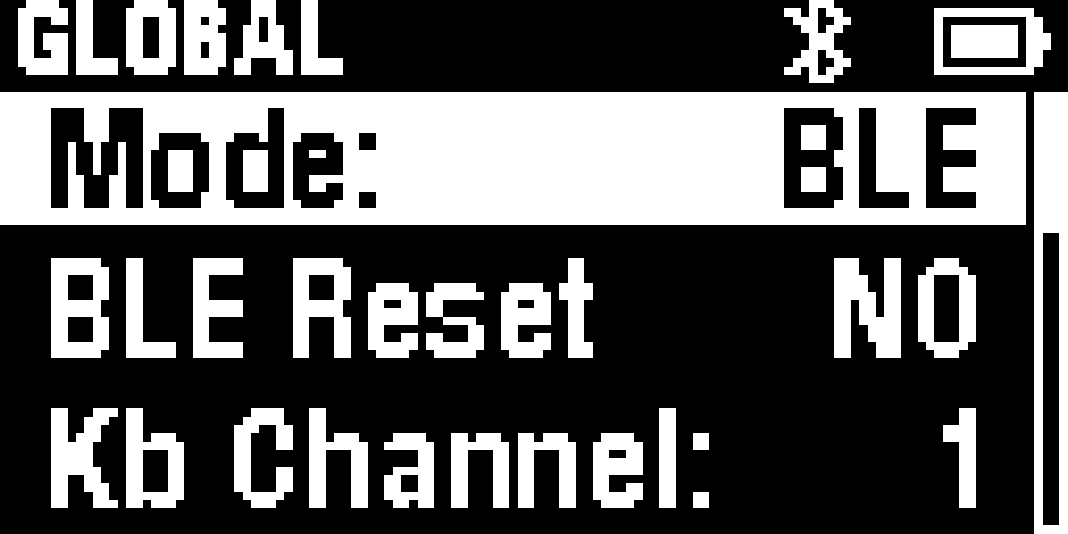
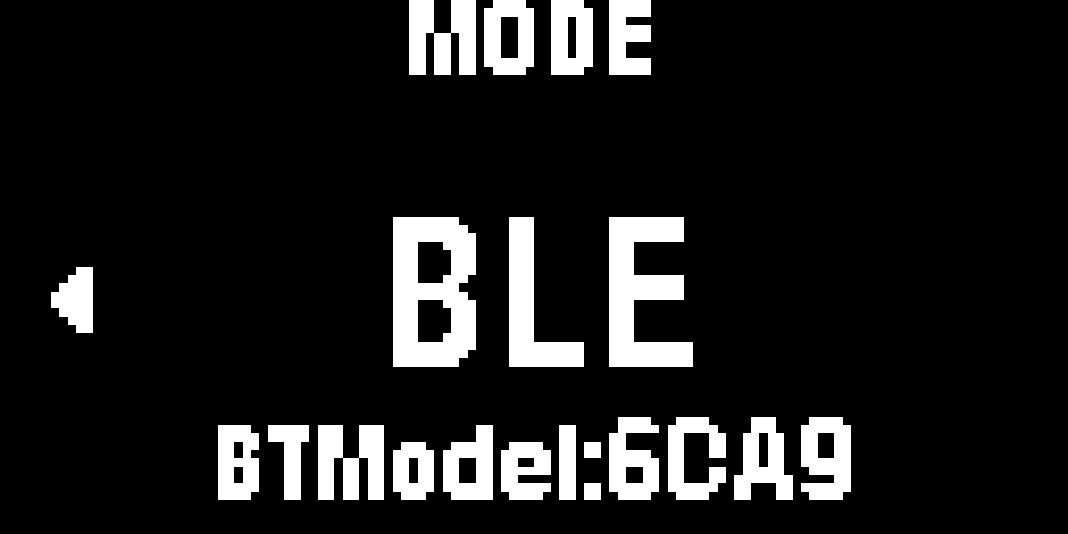
Turn the encoder to select Mode, press it to enter, then turn it to select BLE. This screen also displays the BTModel number, which shows the last four digits of the keyboard's Bluetooth ID. Press the encoder again to confirm and exit.

Mode setting
BLE mode setting
4

Connect to the host device via BLE MIDI.

Open the MIDI utility provided by the operating system, or the Bluetooth MIDI / BLE MIDI device screen in your music app, then scan and select the MIDI device named MCK25.
If there are multiple devices of the same model name, please select the same Bluetooth ID as the one shown on the MCK25 display.
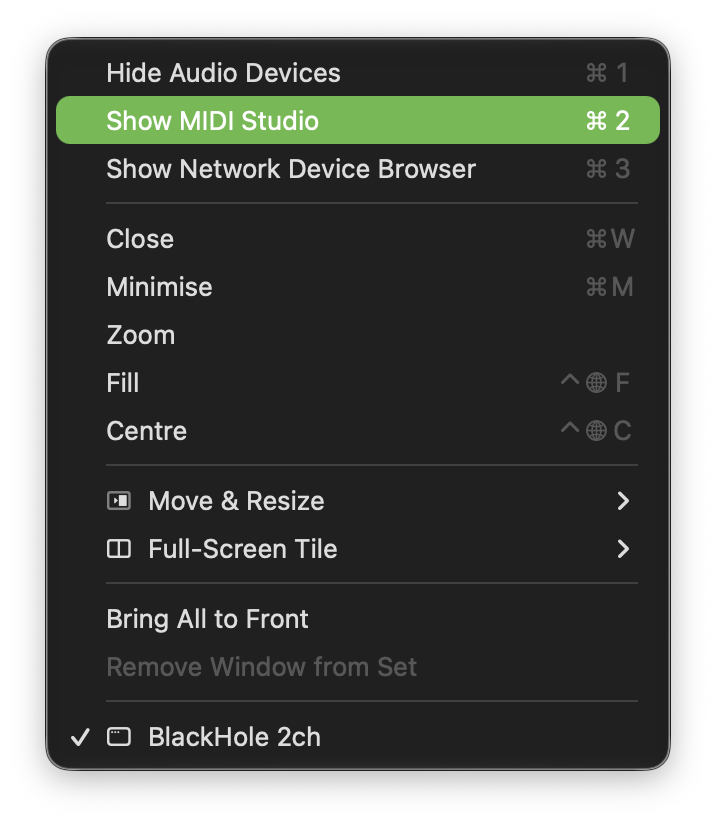
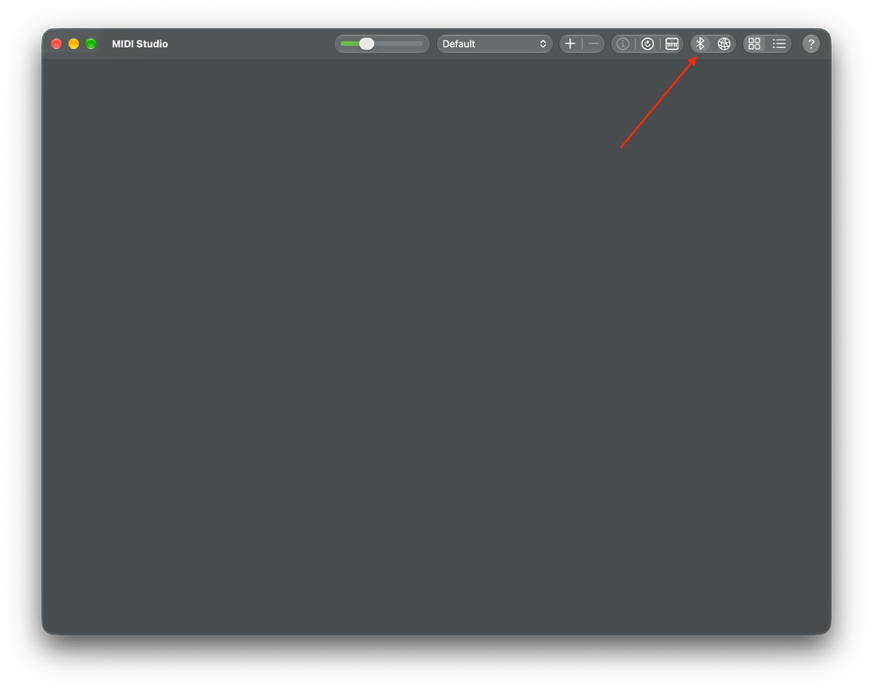
For macOS user, connection can be established via Audio MIDI Setup > MIDI Studio > Bluetooth Configuration.
For other operating systems, the connection interface depends on the OS version and host software.

5

Check MIDI input.

Return to the MIDI settings screen in your music app and select MCK25 as the MIDI input device. Play MCK25's keys or pads to check that the app receives MIDI from the keyboard.

6

Disconnect.

You can disable Bluetooth connection via the operating system’s MIDI utility or the music app you are using, or simply turn off MCK25. The disconnection interface may vary across operating systems and apps.

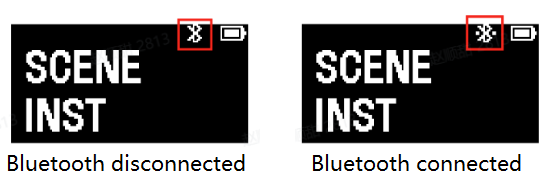
When MCK25 is in BLE mode, the Bluetooth icon on screen will indicate the Bluetooth connection status.

Bluetooth status icon

Once connected, you can use MCK25 for wireless MIDI performance and parameter control.
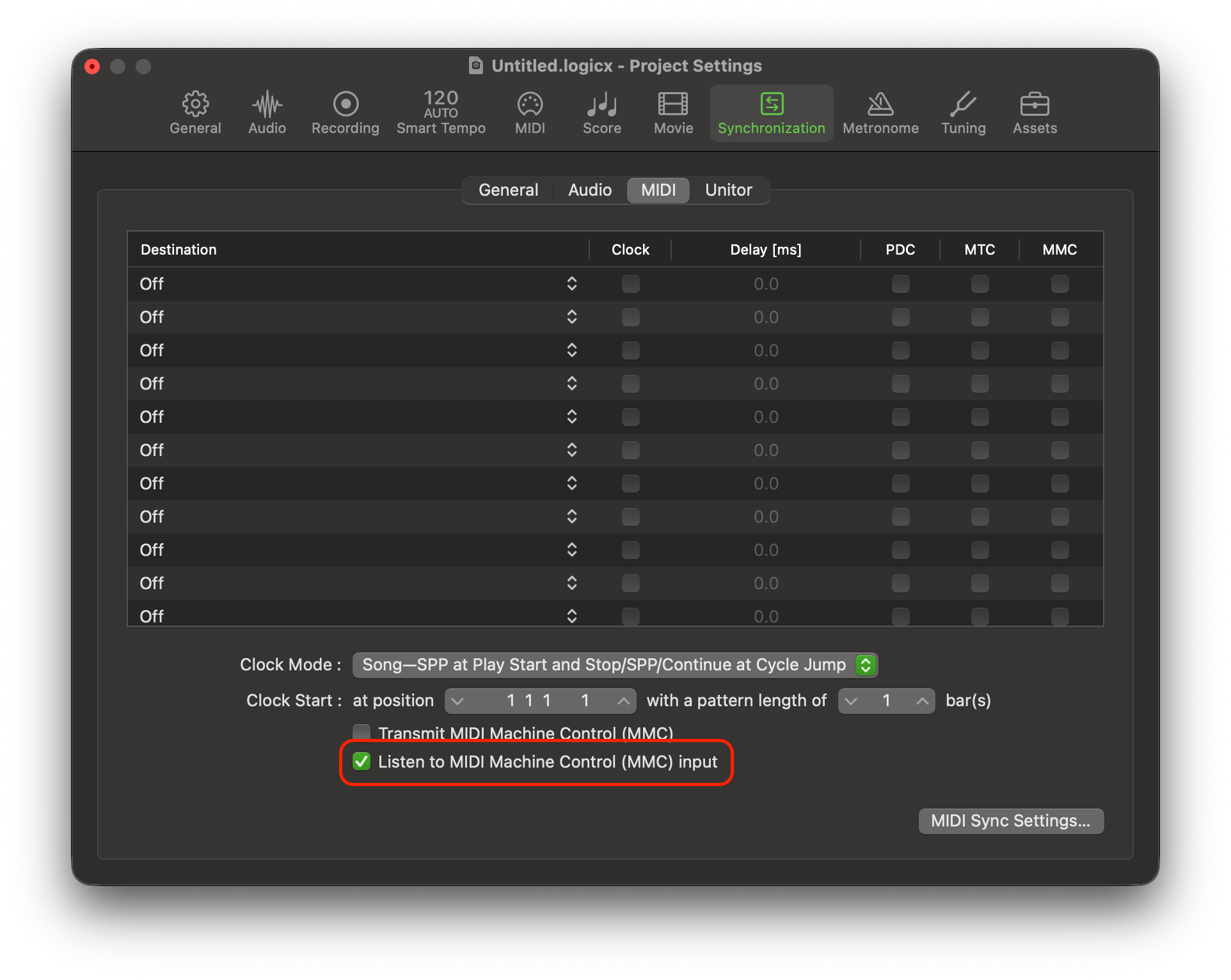
Availability of the transport controls such as play and stop depends on whether the host software supports and has MMC enabled or the corresponding MIDI control protocol.

DAW Setting Examples

MCK25 communicates with DAWs via standard MIDI control protocols. When both performance and DAW control are required, we recommend using the USB mode (connecting via USB-C cable), with the regular USB MIDI port for note and controller messages, and the DAW Control port for control messages such as Mackie Control.
The menus and interfaces in the examples below may vary depending on the operating system, language, and DAW version.

Notes

1

No driver is required.

As a universal MIDI controller, the MCK25 does not require a driver to connect to a host device. After connecting, you can select the corresponding MIDI ports directly in your operating system or music software, and configure Mackie Control or MMC as needed.

2

BLE MIDI is different from Bluetooth audio.

MCK25 is a BLE MIDI device, not Bluetooth headphones or a Bluetooth speaker. BLE MIDI devices usually connect via the MIDI utility provided by the operating system or a music app that supports BLE MIDI. MCK25 communicates MIDI messages, not audio data.

3

USB and BLE output cannot be used at the same time.

When MCK25 is in BLE mode, USB MIDI output is disabled. To communicate via USB MIDI, please press the [SETTINGS] button to enter the settings menu and set the Mode to USB.

4

DAW control functions may vary from software to software.

MCK25 uses standard MIDI, Mackie Control, and MMC to communicate with host software. However, the supported functions, default mappings and responses may vary across DAWs. If some buttons, knobs, or pads do not work as expected, please check the MIDI input, control surface, and remote control settings in the host software.

5

Avoid duplicate MIDI input events.

For recording notes, please select the USB MIDI port as track input.
When configuring a control surface, select the DAW Control port .
If the host software uses both ports as track inputs at the same time, duplicate notes or unintended control events may occur.

6

Cannot find the BLE MIDI device.

Please check that the host device and music app support BLE MIDI, then reopen the Bluetooth MIDI Device screen. Make sure MCK25 is set to BLE mode, has sufficient battery power, and is not occupied by another host device. Move the device closer and scan again.
If it still cannot connect, please run BLE Reset in the settings menu on MCK25, then scan again.

Appendices

MIDI Port Description

When connected via USB, MCK25 provides two virtual ports to separate performance messages from control messages. The complete port names may vary depending on the operating system and how they are displayed. Please refer to what is actually shown on your system.

Port Description
USB MIDI (Port 1) Sends keyboard, pad, knob, pitch bend, and other regular MIDI performance and controller messages. For recording or playing a virtual instrument, please select this port as the MIDI track input.
DAW (Port 2) Sends/receives DAW control messages. When configuring a control surface such as Mackie Control, please select this port as the control surface's MIDI input and output.